PointerCam zooms in on every click as you record, and writes each one down as a numbered step.
Only about PointerCam, and every email has an unsubscribe link. Privacy
Free to try · No account · Nothing uploadedOpen the web editor
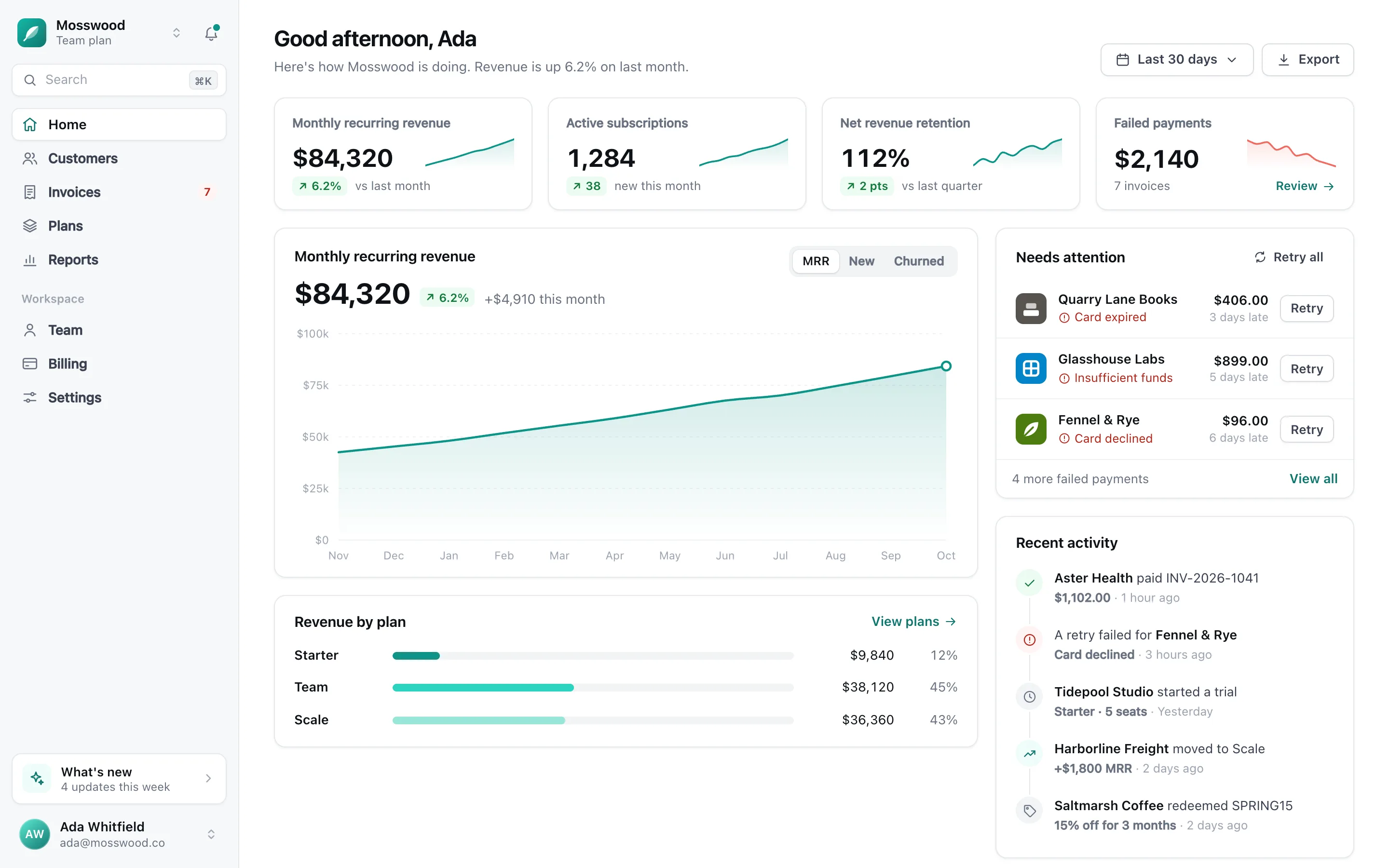
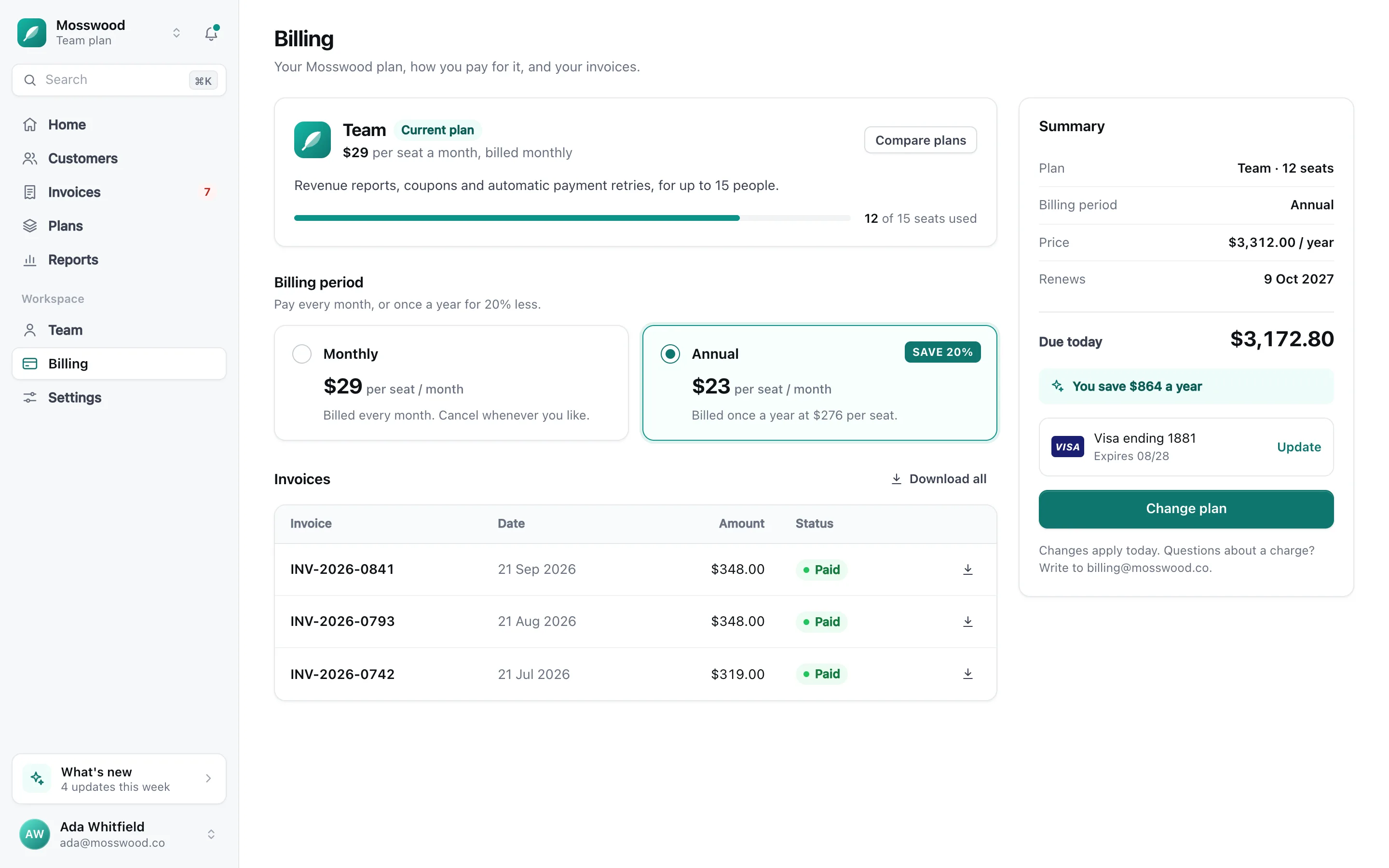
First, open Billing from the sidebar,
Before and after
 Before and after
This is the same recording.
On the left, the take as it was recorded. On the right, the same take as PointerCam opens it, before anyone touches a setting. Drag the line to compare.
First, open Billing from the sidebar,
First, open Billing from the sidebar,
As recorded
- The whole screen at once, so small text stays small
- The system pointer, and clicks that are easy to miss
- The edit and the guide still to do
With PointerCam
- A close-up on every click, starting a second before the click
- Every click marked, and in the Mac app a smooth pointer
- A step-by-step guide from the same take
Use cases
What are you making?
Pick the job, and see the same take finished for it.
For founders and product teams
A launch video that looks as good as your product.
Record the flow once. PointerCam frames your app and moves in on every click, so the video is ready for your site, your launch post and your changelog.
- The camera moves in on every click, so viewers see each feature up close
- A 9:16 version for Shorts, Reels and TikTok with the Shorts style
- Export in 4K at 60 fps, opened and closed by your logo Studio
Start from the Launch style
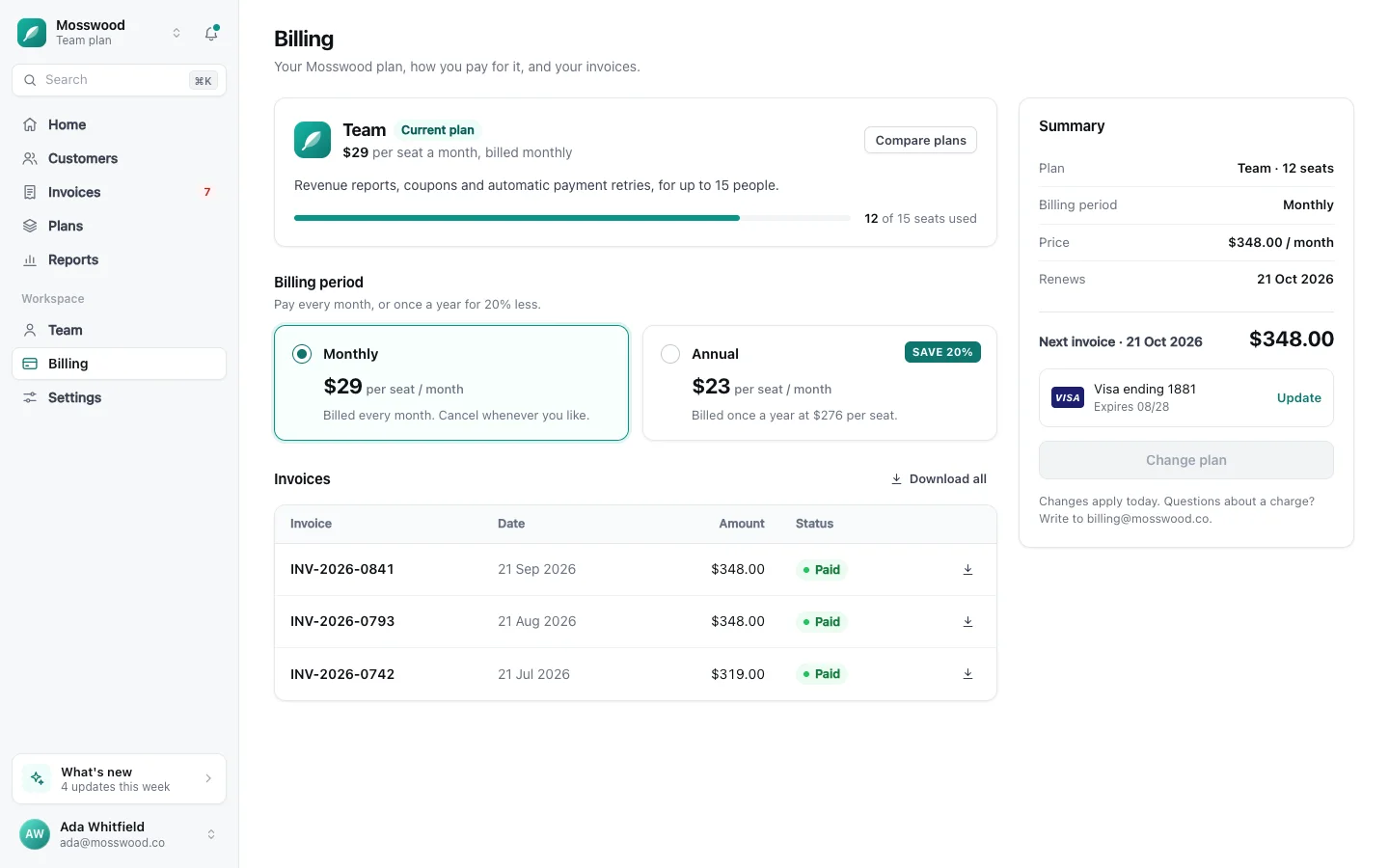
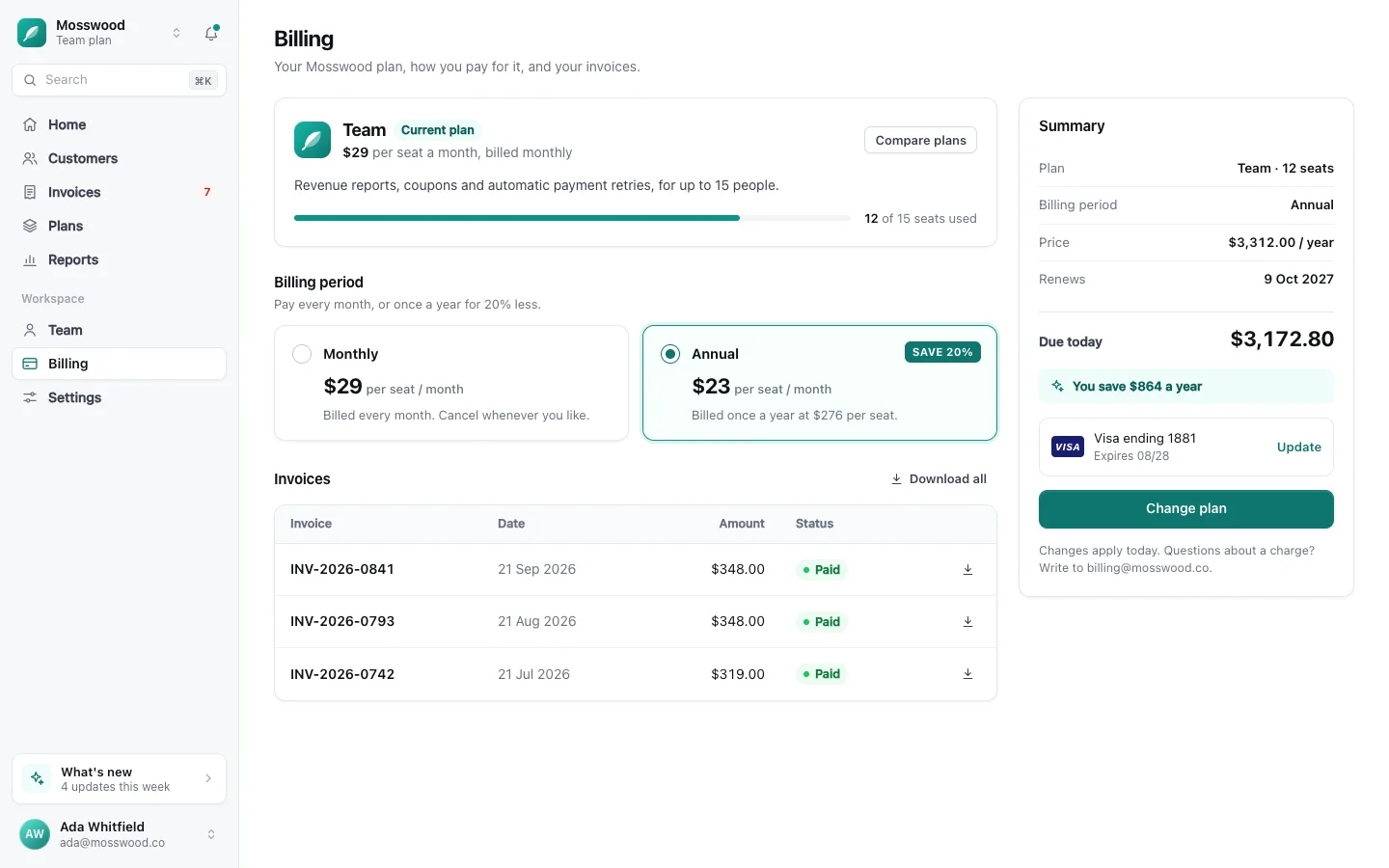
Billing that runs itself.
Plans, invoices and upgrades for your team, in one place.
First, open Billing from the sidebar,
Also good for onboarding new hires, sales follow-ups, course lessons and release notes.
How it works
 How it works
Below, PointerCam finishes a take one decision at a time, and every control on the way is the editor’s own. Try them as you go.
How it works
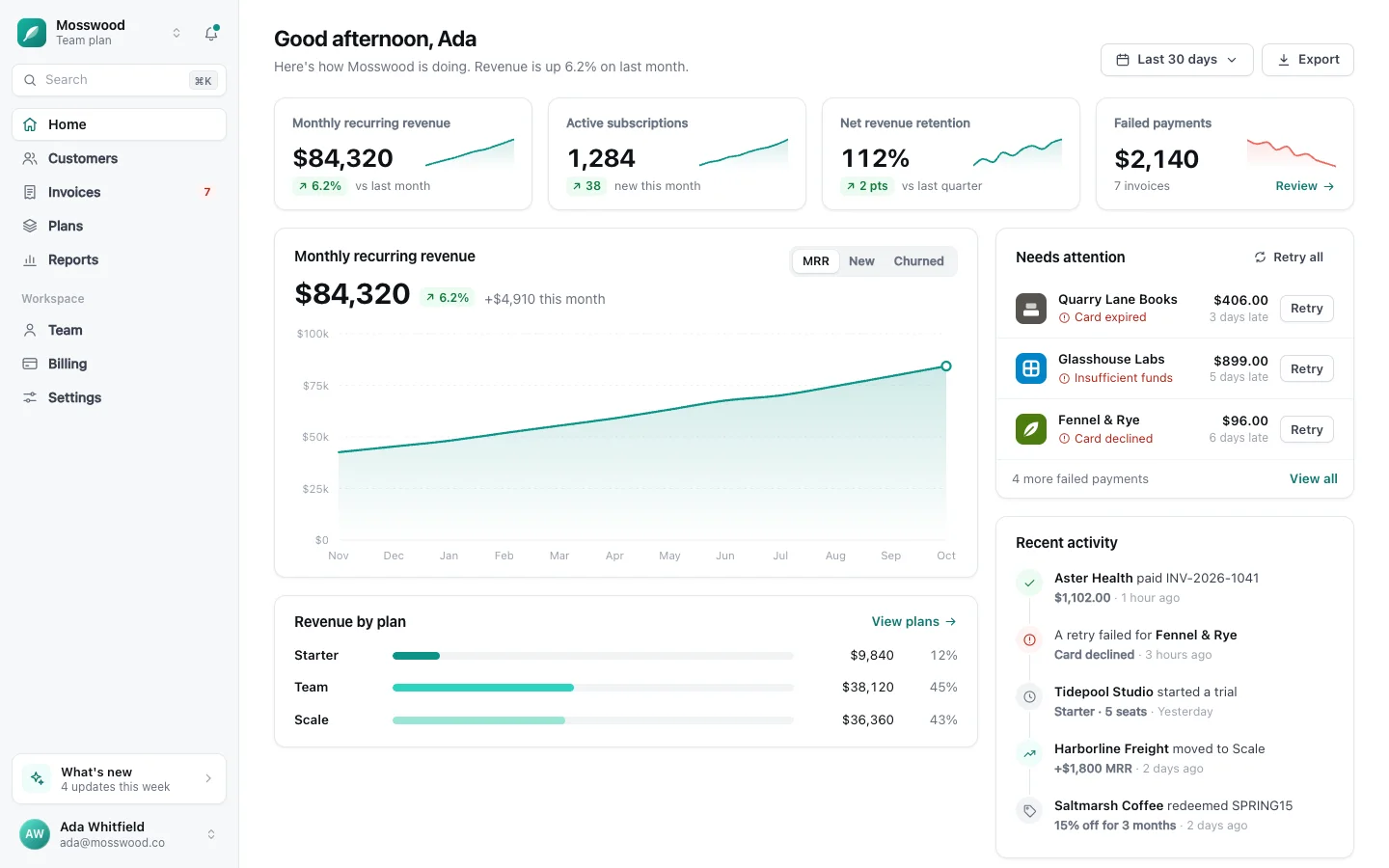
This is what you recorded.
Four clicks through a billing page, captured in a Chrome tab or on your Mac. Nothing is edited yet. Keep scrolling and PointerCam finishes it the way it finishes every take.
It opens framed.
A new video starts on a backdrop with padding, rounded corners and a soft shadow. Pick one of 15 live backgrounds or your own picture, and add a browser bar if you like.
Try it on this takeSimple mode
Your clicks place the close-ups.
Each click becomes a camera move that starts a second before the click. Every move is a block on the timeline that you can drag, deepen or delete.
Try it on this takeSimple mode

Every click is easy to follow.
Each click is marked where it lands. In the Mac app the pointer is drawn after the take, so you can resize it, restyle it or swap in a picture of your own.
Try it on this takeSimple mode

Your camera stays out of the way.
While a close-up holds, the bubble shrinks into its corner. If a click would land under it, it moves across first.
Try it on this takeSimple mode

Captions, transcribed on your computer.
A speech model on your own machine times every word to your voice. Nothing you say is sent anywhere.
Try it on this takeSimple mode

That’s the video.
Export MP4, WebM or GIF. Free videos run up to 10 minutes at 1080p, and Studio exports up to 4K at 60 fps.
First, open Billing from the sidebar,
The guide
 The guide
The same take is already a guide.
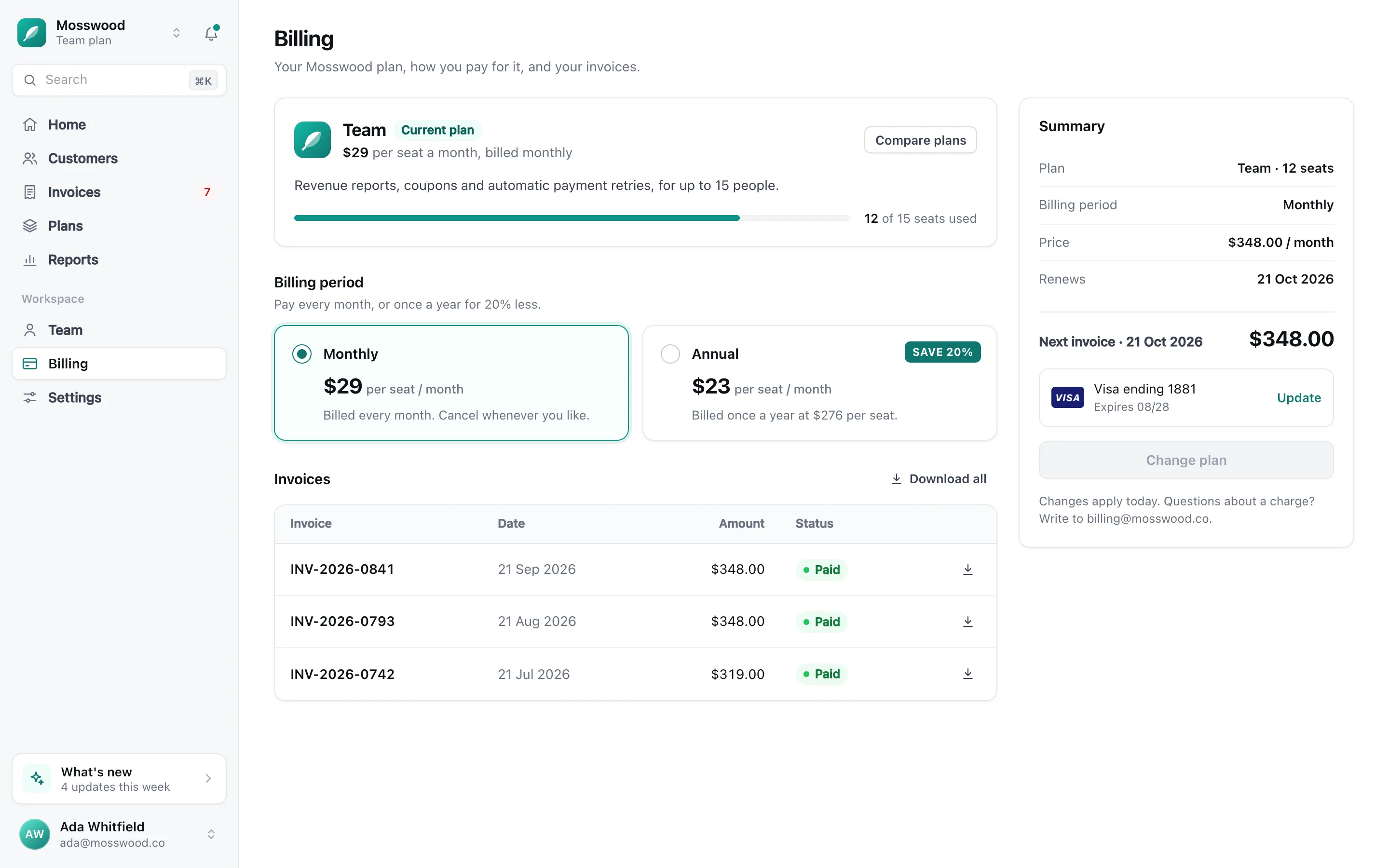
Open it as a guide and every click is a numbered step that already says what was clicked, with the screen as it was and a box around it. Change any words, drop the steps you don’t need, and export.
- One step per click, already saying what you clicked
- Close-ups you can read, with a box on what you pressed
- Sections, tips and warnings, and covers on anything private
- PDF, Word, a web page or Markdown, or copy it to paste
Step 2
2. Select “Annual”
3. Click “Change plan”
The rest of the editor
 The rest of the editor
Everything else a walkthrough needs.
All of it lives in the same editor as the close-ups and the guide, on your own computer.
The pointer
A pointer people can follow.
The Mac app records where your pointer goes and draws it again for the video, steady and easy to see. Steer it on the page below, and change it with the editor’s own settings.
Click effects and the spotlight work on Chrome takes too. The pointer’s look and movement are for takes made in the Mac app.
Get PointerCam
 Get PointerCam
Record on your Mac, or right in Chrome.
Both open the same editor, and both are free to try. The Mac app follows your clicks in every app, and the extension follows them in Chrome.
The Mac app
Records any app or window, with system audio, and follows your clicks in every app. The pointer is drawn after the take, so you can restyle it or use your own.
- Close-ups and guide steps in any app
- Drawings on screen stay editable
- Its toolbar never shows up in the take
Only about PointerCam, and every email has an unsubscribe link. Privacy
 A
A
PointerCam
Starts after a 3 s countdown · ⇧⌘S to stop
Screenshot this page
The Chrome extension
Records a tab, a window or your whole screen, and follows your clicks on web pages. In other apps, you add the close-ups yourself in the web editor.
- Close-ups and guide steps in Chrome tabs
- Spots password and email fields
- Runs in Chrome and other Chromium browsers
Only about PointerCam, and every email has an unsubscribe link. Privacy
Or open the web editor to edit a recording you already have.
Pricing
 Pricing
Free for 10-minute videos. Studio lifts the limits.
No account and no card for Free. When a video needs to run longer, export sharper or carry your own logo, that is Studio.
Free
$0
Free to use for as long as you like.
- The Mac app, the Chrome extension and the web editor
- The video editor, the guide and the screenshot tools
- Videos up to 10 minutes, guides of any length
- Your camera, as a bubble
- A small PointerCam mark on videos and guides
Studio
For work that carries your name.
$10/ monthLaunch price
$120 billed once a year, instead of $240 paid monthly.
The launch price stays yours for as long as you stay subscribed.
- 14-day money-back guarantee
- Cancel anytime
By buying, you agree to the Terms of Service and the Refund Policy.
One project? 7 days for $9, paid once, with nothing to cancel.
Everything in Free, and
- No PointerCam mark, or your own logo in its place
- Videos of any length
- Export up to 4K at 60 fps
- Every camera layout, changing as the video plays
- A camera that moves itself, or goes anywhere you put it
- The RGB glow
- Guides whose steps move
Whatever the plan, your recordings stay on your machine. No plan can reach into work you have already exported.
Questions
 Questions
Before you install.
Short answers here. The privacy page has the long ones.
A video with the close-ups already placed, and a step-by-step guide you can export as PDF, Word, a web page or Markdown. Any frame of the take can also be opened in the screenshot editor and finished as a picture.
No more plain screen recordings.
Make your next demo, tutorial or client update with PointerCam. It is free to try, needs no account, and nothing leaves your computer.
Only about PointerCam, and every email has an unsubscribe link. Privacy
Free to try · No account · Nothing uploadedOpen the web editor