
Features
One take. A video and a guide.
Every feature, in the order you meet it: record, the automatic first cut, the editor, the look, the pointer, your camera, the edit, the sound, the guide the same take becomes, and the screenshot editor.
Record
 Record
Capture, without ceremony
One click from the toolbar, in Chrome or on your Mac. No project to name and no upload to wait on. The take is in the editor the moment you stop.
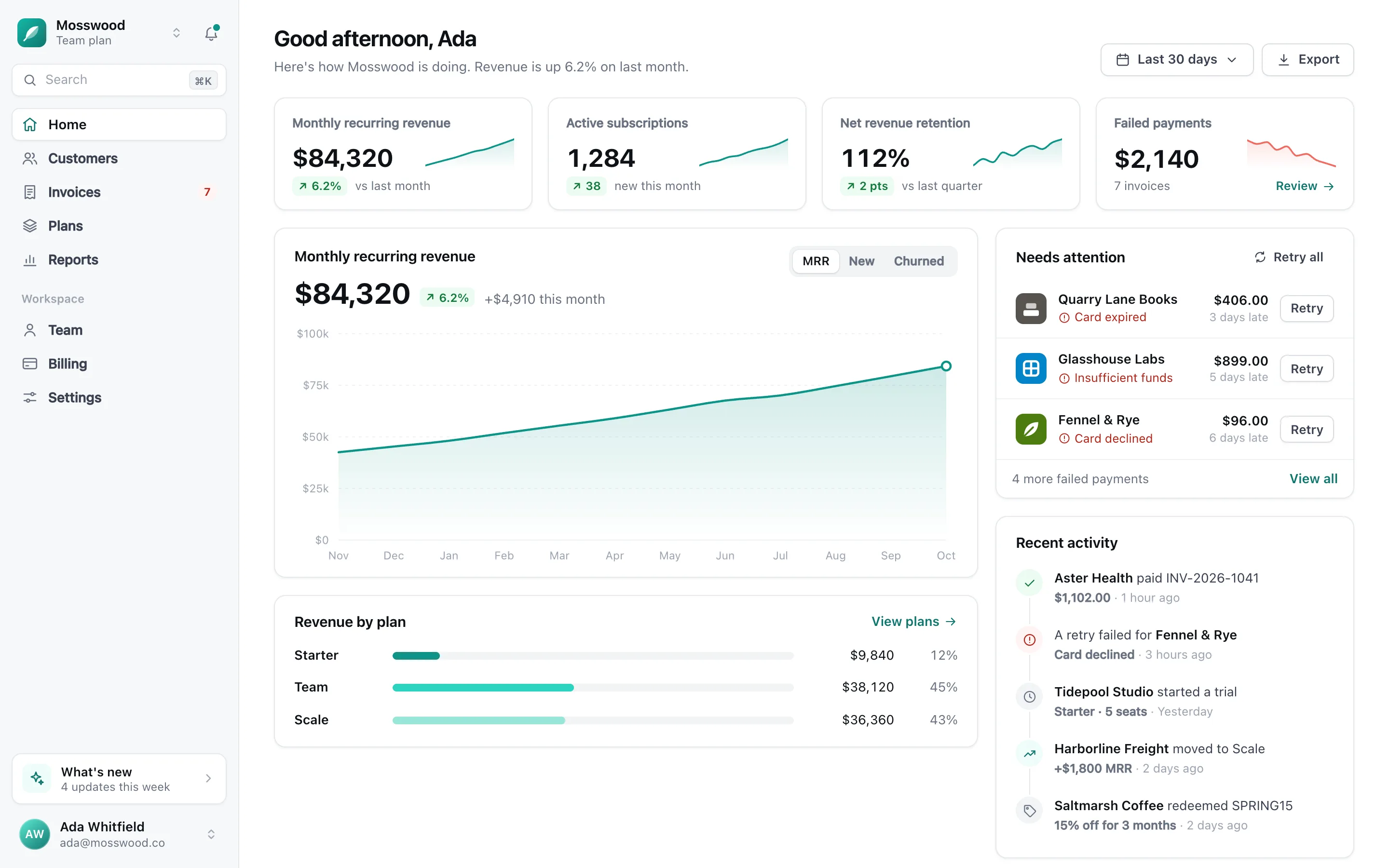
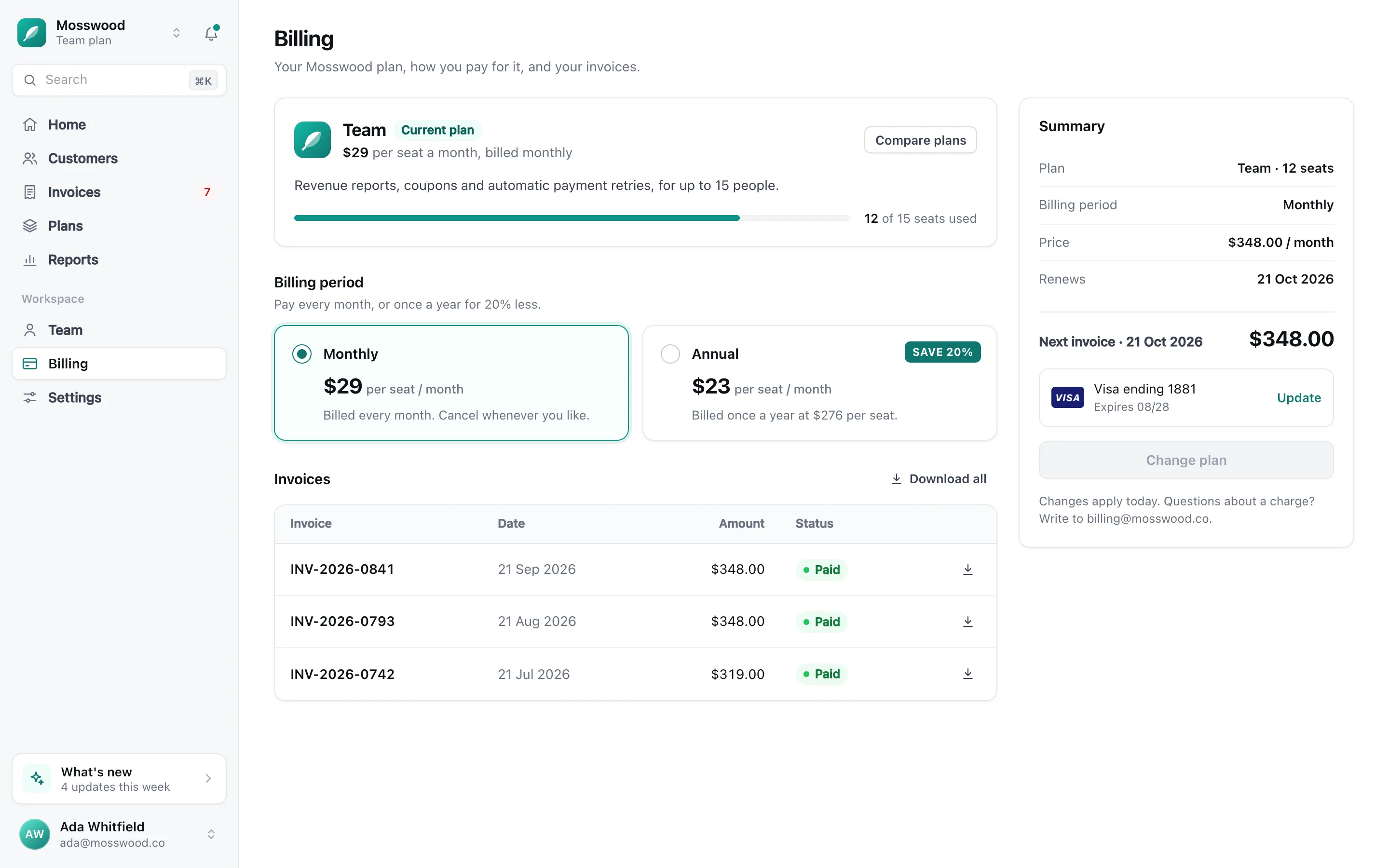
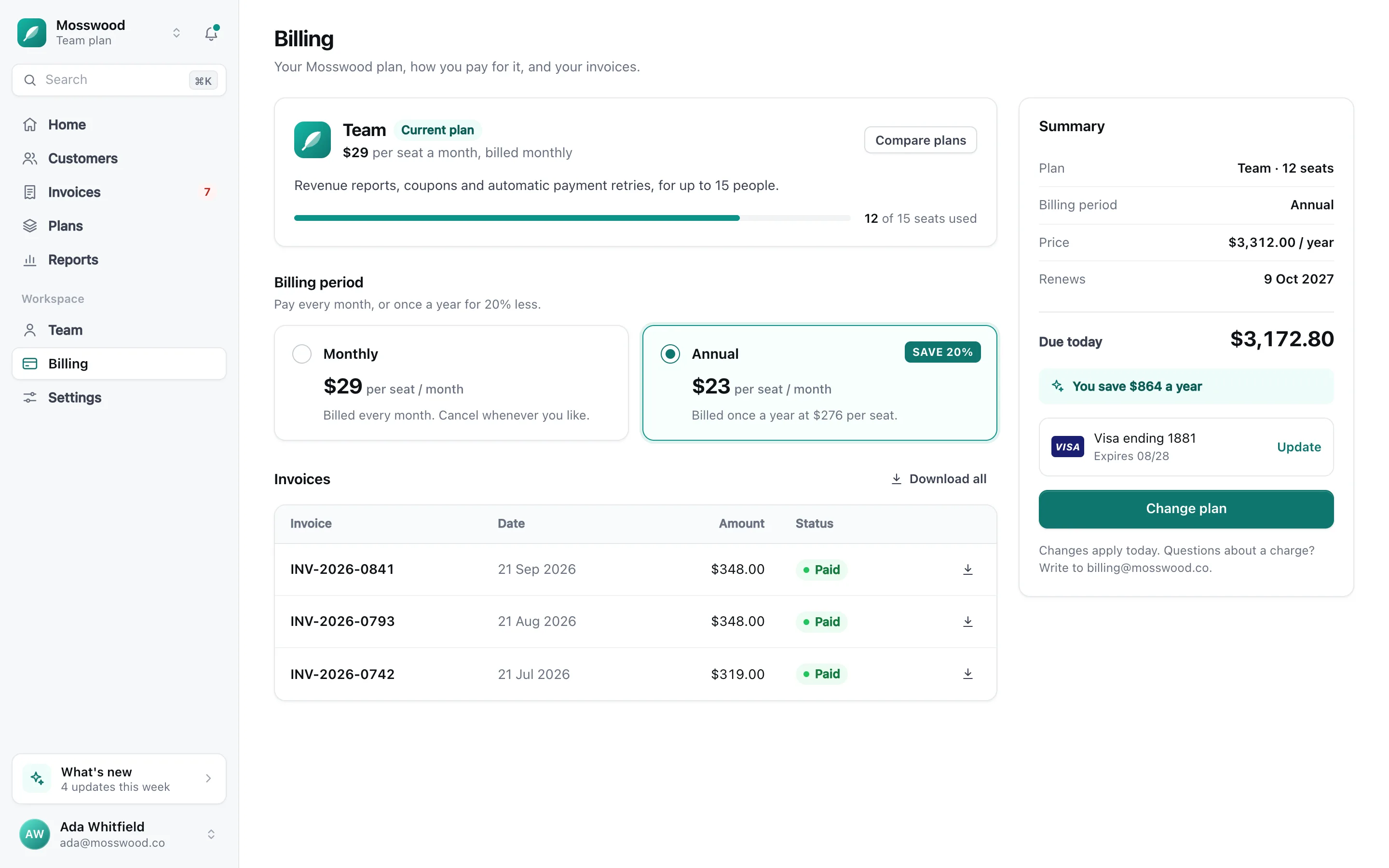
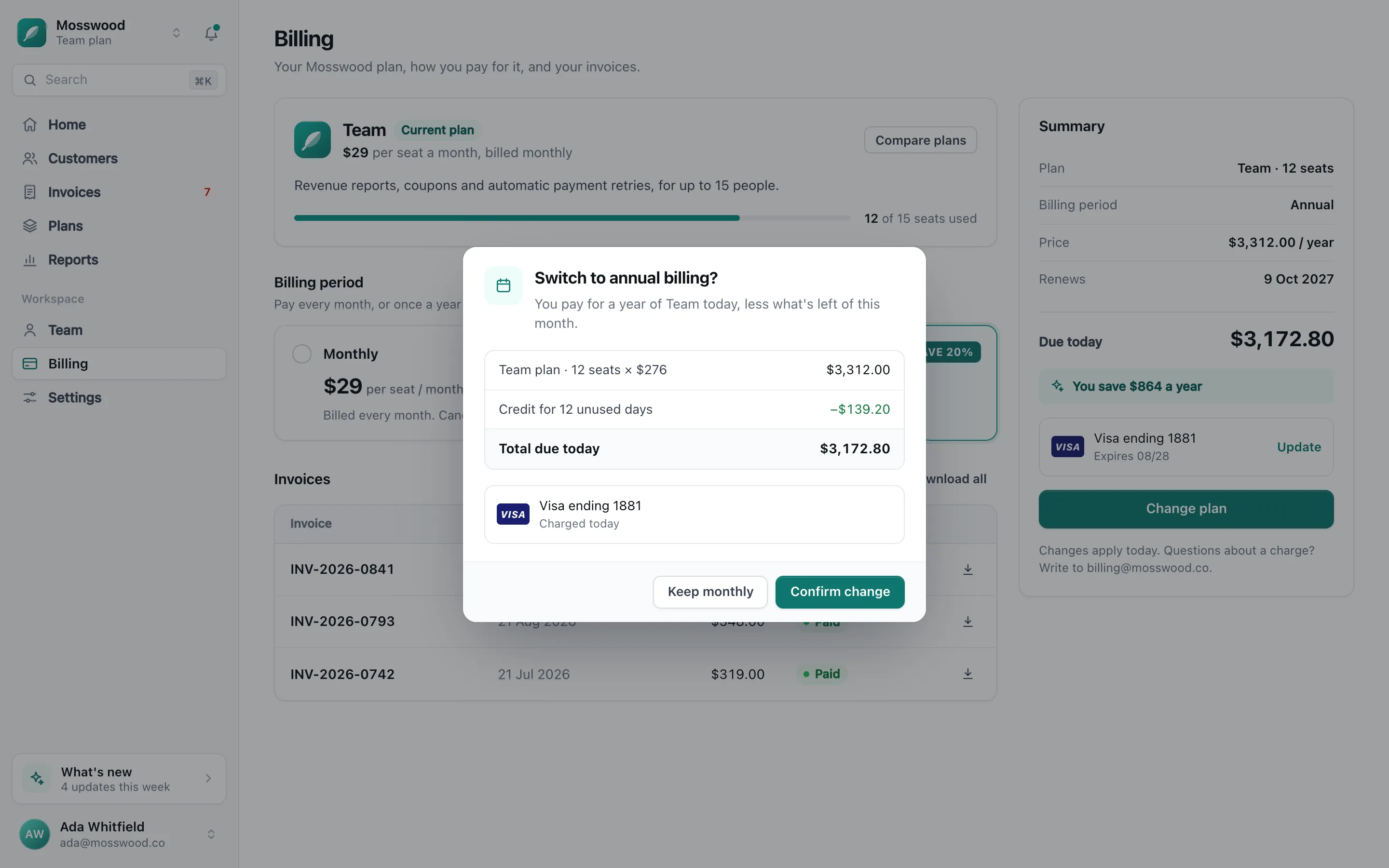
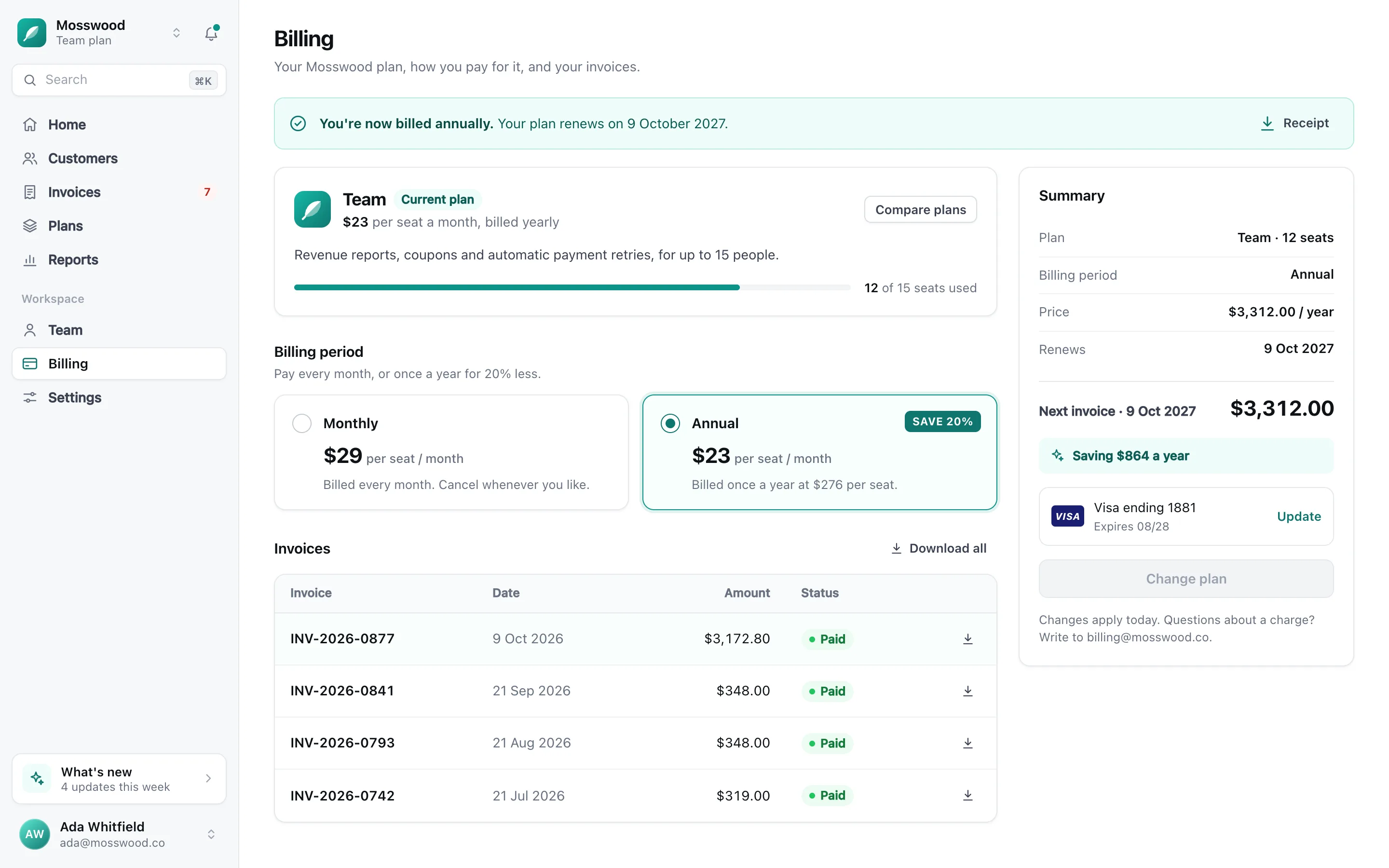
First, open Billing from the sidebar,
Try it: pick a tool and draw on the video.
Tab, screen or window
Record a single browser tab, a whole display, or one application window. The Mac app follows your clicks in every app. The Chrome extension follows them on web pages.
Mic and webcam
Add your voice and your face. Your camera is a bubble on every plan, and Studio puts it in any of 15 layouts.
Draw on the screen
NewPress ⌥⇧D while recording and circle, point at, box or highlight what you are talking about, in seven colours. It fades three seconds after you stop. Free in the Mac app and in Chrome.
Region capture
Drag out any part of a page for a still, and take it straight into the screenshot editor.
Stop from anywhere
Cmd/Ctrl+Shift+S ends the take from any tab, without hunting for the one you are recording.
Nothing lost to a crash
A recording cut short by a closed tab or a crash is still there. The library notices and offers to recover it.
Auto-zoom
 Auto-zoom
The edit begins while you record
Other recorders hand you raw footage. PointerCam turns your clicks into the first cut, and you stay in full control of it.
First, open Billing from the sidebar,
Played live in your browser by PointerCam’s own zoom planner.
Clicks become camera moves
The pointer is sampled 120 times a second while you record. Clicks close together in time and space become one timed, eased move.
Timed like a camera operator
Every move starts a second before the click and lands before it does. Scroll flings are skipped.
Depth set by your clicks
Each move lands between 1.5× and 2.5×, depending on how spread out the clicks are. Tight work punches in. Broad work keeps its context.
A camera that steps aside
The webcam bubble crosses to the opposite corner so it never sits on the click you just made. On by default.
Always yours to retune
Every generated zoom is an ordinary timeline block. Drag it, deepen it, aim it at the pointer, keyframe it, or add your own from the timeline, anywhere in the take.
The editor
 The editor
Start in Simple, switch to Pro for every setting
The editor opens in Simple: what it already did, and the choices most videos make, one click each. Pro lays out all 81 settings by area, under the names Simple uses. Search finds any of them from either mode.
First, open Billing from the sidebar,
Simple
NewZoom strength, click marks, captions and their size, hiding something, the background, frame, window, camera and your voice, each a row. Its timeline splits, cuts and adds a zoom, a cover or a callout.
Pro
NewEvery setting in seven areas, from Scene to Brand & Export, one section open at a time. The editor remembers the mode you used last.
Settings search
NewPress ⌘K in either mode and type a thing on screen, or a problem like “silence”. Each result says where it lives, and ↵ opens it with the setting lit.
Ready to export
Simple opens on what was done for you, and offers what it found and did not do, like long pauses, for you to take or leave.
Styles
Save a look and wear it on the next video. Twelve to start from, one for each kind of video, from Standard to Ink.
Click it to change it
NewClick anything on the preview (the recording, the captions, your logo, a callout, and on Studio your camera) and its own settings open beside it, in Simple or in Pro. Drag it to move it, and it snaps into line with the frame and everything round it.
The look
 The look
Make a raw capture look finished
A few controls, all running the same geometry your export gets.
First, open Billing from the sidebar,
Aurora, playing in your browser now
15 live backgrounds
Looping scenes drawn frame by frame, each in six moods with colours you can change, and mesh backdrops that drift, swirl or breathe. The loop fits the length of your video.
Backgrounds and framing
Pick a backdrop from the wallpaper shelf, pad the take, round the corners, and cast a real shadow that sets it into the scene, soft or lit from an angle.
Drawn window chrome
A clean browser or window frame around the take, drawn rather than captured, with an address bar that follows your recording.
RGB glow
NewAn animated colour ring that hugs the frame’s rounded edge, inside, outside or both. Choose a palette, a width and a halo. The camera bubble wears the same light. Part of Studio.
Pointer
 Pointer
A pointer people can follow, even your own
Clicks are marked in Chrome and on your Mac. The Mac app also draws the pointer itself after the take, so what it looks like stays your choice: one of nine pointers, or a picture of your own.
First, open Billing from the sidebar,
Comet, on the take in your browser now
Big, ramped and heavily rimmed: a pointer meant to be looked at. Its colours, rim and ramp are all yours to change.
Nine pointers, any colour
Nine silhouettes, from the system arrow to a disc that never covers what it points at, with seven ready-made colour ramps for the body or the rim, and gradient or spectrum fills of your own. Size, smoothing and shadow each have a setting.
Your own pointer
NewUpload a PNG, or a GIF that plays, and it becomes the pointer: your logo, a pencil, a laser dot. Drag and scale it inside the pointer’s square, then click the spot it points from.
A shape for each moment
NewAs recorded, the pointer changes with the page: a hand over links, an I-beam over text. Pick another shape for any of those moments, keep one shape for the whole video, or hide the pointer while you type.
Every click marked
Each click leaves a mark you size and colour yourself: an orb, a ring, a press that dents the picture, or a ripple that runs through it. In Chrome and in the Mac app.
A spotlight on the pointer
Dim everything outside a soft circle under the pointer, with its own radius and blur, so the eye goes where you are working.
Highlight before every click
NewOne switch highlights what is about to be clicked, a moment before every click: the rest dims, softens and greys, and the button floats up. Or draw a box round anything. Seven looks, worn by every highlight, and any one can keep its own.
Kept in your Styles
NewA saved Style keeps the pointer, its shapes and the pictures of your own they use, so the next video starts with the same one. A Style shared as a file carries them too.
Camera
 Camera
Your camera, in any layout, at any moment
Open on your face, share the screen with a bubble in the corner, sit side by side to explain, and close on you. Your camera records on every plan as a bubble in the corner you pick. The other layouts, the smart camera and placing it by hand are Studio.
First, open Billing from the sidebar,
Layout
15 layouts
NewThree bubbles, two cards that lean on the recording, six ways to share the frame, you alone two ways, and the screen alone. Each is drawn from the frame, so a tall or square video keeps its design.
Changed at any moment
NewA layout card on the timeline is a stretch where the frame is arranged differently, eased in and out over 450 ms. Double-click the Layout lane to start one.
Dragged into place
NewClick the recording on the preview, or on Studio your camera, and drag it anywhere, or pull a corner to resize it. It snaps to the frame’s edges, centre and thirds, and to the other one.
A camera that plans itself
On Studio, and on by default there: smaller in a corner while a close-up holds, out of the way of a click, and beside the recording when the screen goes quiet. It can also open and close the video on you.
Shape, ring and shadow
A circle, a rounded square or a square, with a ring and a shadow. A card beside the recording can take the recording’s own corners.
Recorded as its own track
The camera records beside the screen, in the Mac app and in Chrome, so every layout can still be changed after the take.
Edit
 Edit
EditThe whole cut, on one timeline
Everything below ships in the free editor today. No render queue, and no video-editing background assumed.
Trim, cut and pace
Drag the ends, marquee out a mistake, split with S, and ramp anything slow from 0.25× to 8×.
Callouts
Text, arrows and boxes on their own lane, with real typography, drop shadows and bowed arrows. Placed at the playhead and dragged on the canvas.
Blur, redact and auto-cover
NewBlur, pixelate or cover anything for exactly as long as it is on screen. The recorder notices password and card fields and offers to cover them, and a redaction follows the page as it scrolls.
Crop, reframe and aspect
Close the frame onto a detail as a timed move, or set the whole piece to 16:9, 1:1, 4:5, 3:4, 4:3 or 21:9 for wherever it’s going.
Scenes and transitions
Stitch takes and title cards into one piece, reorder them as chips, and cut, dissolve, wipe or slide between them.
Keyframes with real easing
Keyframe the camera, the framing and more. One easing model keeps every move consistent across the piece.
Loop the part you’re tuning
Ring off a range and let it repeat while you adjust it, so a two-second move is judged on the tenth pass rather than the first.
Audio and captions
 Audio and captions
Every source on its own fader
Captions are written from your voice on your own computer. Mic, tab audio, click ticks, key taps and music each get a fader, and the music bed fits the length you cut to.
Captions, written on your computer
NewA speech model on your computer writes captions from your voice, timed word by word. Show them in the picture a line or one word at a time, on a dark, light or glass plate, or save an SRT file beside the video for YouTube’s own captions.
Mix without re-recording
Mic, tab audio, click ticks, key taps and music sit on separate faders, so the mix is a few drags rather than a re-record.
Music that fits, ducking that listens
Twelve public-domain loops, calm to upbeat, run as long as your video without a seam, and ducking pulls the music down while you speak.
Click and key sounds
NewA library of pointer clicks and keystroke taps, synthesised rather than sampled, so they stay crisp at any length.
Step-by-step guide
 Step-by-step guide
The same take, as a numbered guide
Some handovers need a document, not a video. The walkthrough editor retells a recording as a numbered guide, built from the same click track that placed the zooms, so you never write the steps twice.
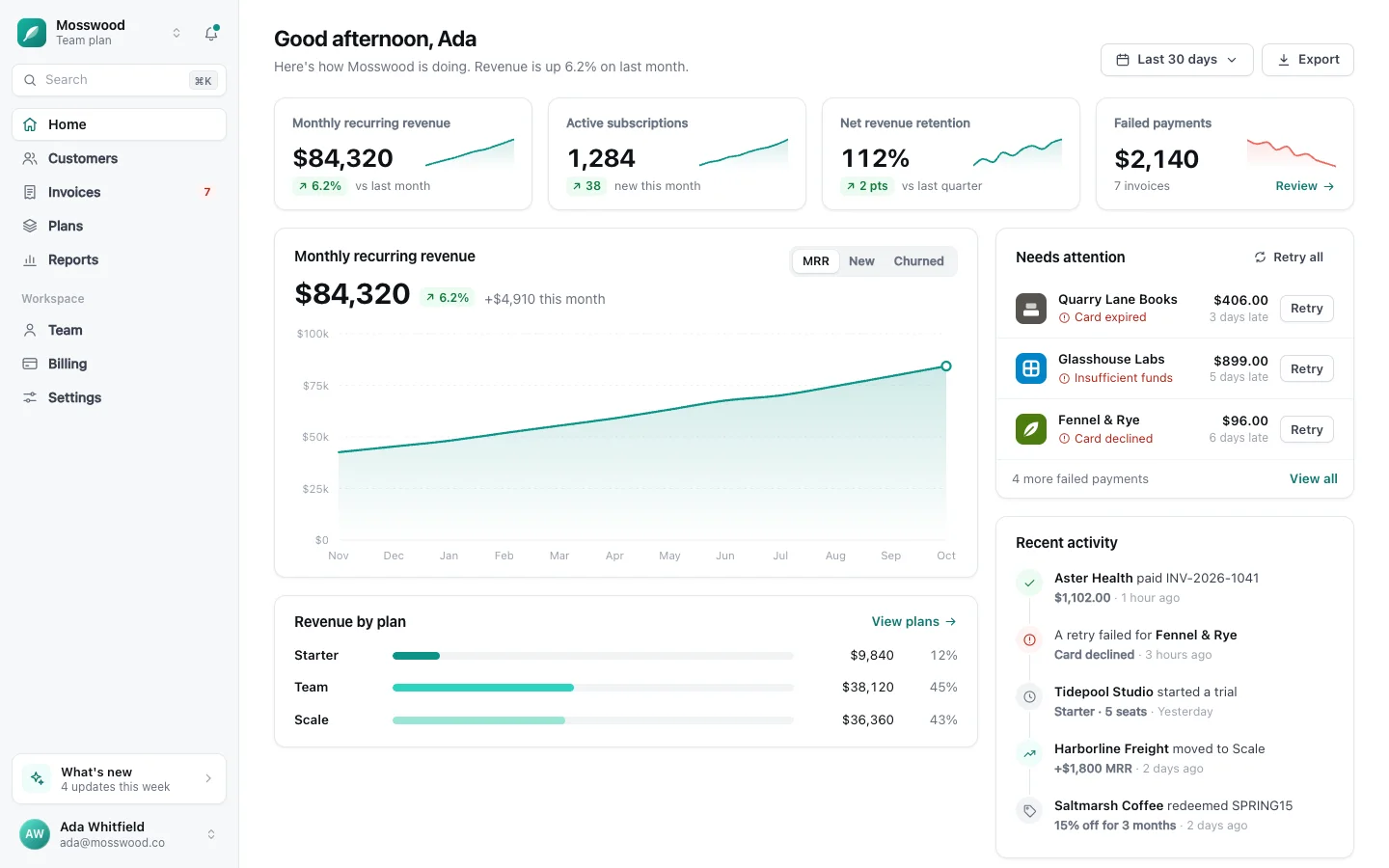
Step 2
2. Select “Annual”
3. Click “Change plan”
Steps that write themselves
NewOne step per click, each already saying what you clicked, like Click “Billing”, plus a closing step that shows where you ended up. Change any words, and reset a step to its own line whenever you like.
Close enough to read
NewEach step is framed close around what you clicked, so the app’s own text is readable on the page, or shows the whole screen when that says more.
Marked where you clicked
NewEvery step’s picture carries a box that hugs what you pressed, or a ring or a spot, numbered if you like. Push in toward it or dim everything around it. Each is one control.
Sections, tips and warnings
NewGroup steps under headings, add a tip, a warning or a note to any step, each in a colour you choose, and add steps that are only words.
Covers that carry over
NewAnything you hid in the video stays hidden in every step it shows up in, and you can cover more from the guide’s own timeline.
Styled once for every step
NewEach step’s picture sits in the same scene the video gets, and its marker, spotlight and zoom follow the guide’s settings unless you give that step its own.
Preview before you download
NewSee the guide as its web page, right in the editor, before any file is made.
PDF, Word, web page or Markdown
NewYour typeface, sizes and colours, bound into a PDF, a .docx you can keep editing, a web page that comes as a folder with its pictures for any site, or Markdown with its pictures for a docs site. Or copy it and paste it into a document.
Steps that move, with Studio
NewOn the web page, each step that clicks something plays a short clip of its click in place of its picture, cut from the same take. The PDF and the Word file keep the pictures.
Screenshots
 Screenshots
Screenshots get the same framing
A third editor sharing the framing engine with the other two. Whatever you can do to a video frame, you can do to a picture.




Annotated by hand in the screenshot editor
The same framing
The wallpaper shelf, padding, corner radius and shadow the videos get, applied to a single image.
Step badges that renumber
Drop numbered badges on the parts that matter; restack them and the numbers follow without a pass of manual fixing.
Arrows, shapes and text
Bowed arrows with real heads and tails, boxes, and text with the typeface, weight and alignment you choose.
Redaction that samples the image
Blur, pixelate or cover, sampled from the finished picture underneath, so a cover never gives away what it hides.
Crop, restack, then copy or save
Trim the edges, duplicate or reorder any layer, then copy straight to the clipboard or export a PNG at 1×, 2× or 3×.
Ship it
 Ship it
Export locally, in the format you need
No render queue and no upload. The file is encoded on your own computer.
Export, locally
MP4, WebM, GIF or a PNG still. Up to 1080p free, and 4K at 60 fps on Studio, encoded on your own computer. Nothing is uploaded to produce it.
Bring your own footage
Drop an MP4, WebM, MOV or MKV into the library and the whole editor applies: framing, callouts, cuts, export.
A library that stays local
Every take, edit and guide stays on your computer, in your browser’s own storage or the Mac app’s. Reopen a project months later without an account.
No more plain screen recordings.
Make your next demo, tutorial or client update with PointerCam. It is free to try, needs no account, and nothing leaves your computer.
Only about PointerCam, and every email has an unsubscribe link. Privacy
Free to try · No account · Nothing uploadedOpen the web editor