

PointerCam vs Camtasia
A Camtasia alternative that opens ready to export.
Camtasia is a full video editor for Windows and Mac, with a multitrack timeline, effects, quizzes and AI tools, and its free editor exports with a watermark. PointerCam opens each recording with the close-ups already placed on your clicks, records in Chrome or on a Mac, and turns the same take into a step-by-step guide.
Choose Camtasia if
- You edit long, produced videos on a multitrack timeline, with transitions, animations and green screen.
- You make training for a learning platform, with quizzes and SCORM export.
- You want AI scripts, voiceovers, avatars or dubbing.
- You record any app on Windows. Camtasia has apps for Windows and Mac.
- You also want Snagit for screenshots, which every Camtasia plan includes.
Choose PointerCam if
- You’re new to editing video. The editor opens in Simple, with the close-ups already placed and the video ready to export.
- You work in the browser. PointerCam’s Chrome extension records a tab, a window or your whole screen, on Windows or a Mac.
- You want the step-by-step guide made from the same recording, as PDF, Word, a web page or Markdown.
- You’d rather pay by the month or the week: Studio is $20 monthly, or $9 for 7 days, paid once. Camtasia’s plans are billed yearly.
- You pay yearly: Studio is $120 a year, and Camtasia Essentials $179.
Side by side
PointerCam and Camtasia, row by row.
Price, the free plan, where each records, and what you get from one recording.
Camtasia’s side is from techsmith.com/camtasia, its features, its store, its price in US dollars on 15 October 2026. PointerCam’s is from our pricing.
Close-ups placed while you record
Camtasia is built for editing: a multitrack timeline where zooms, callouts and cursor effects take a few clicks each, and an AI auto zoom and pan that focuses on the important parts of the recording.
PointerCam samples your pointer 120 times a second while you record. When you stop, the video opens with a close-up on each click, arriving just before you press, and every click marked. Retune any of them, or export it as it is.
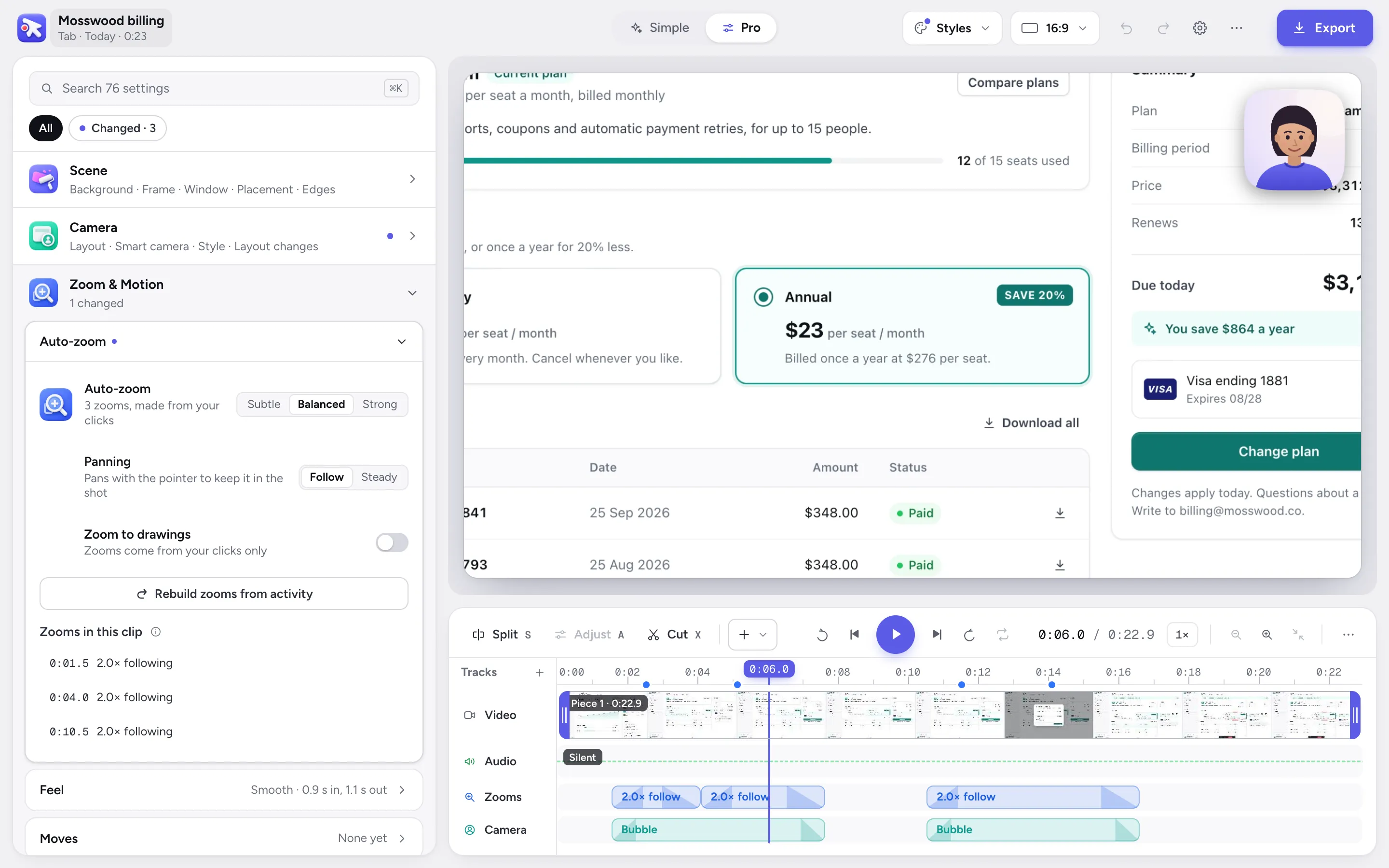
The video editor, with the close-ups it placed on each click.
An editor made for your first video
PointerCam opens a recording already finished: close-ups on your clicks, every click marked, ready to export. The editor starts in Simple, which shows what was done and the choices most videos make, one row each, like zoom strength, captions or the background.
The first time you open it, a short tour points out each part. When you want more, Pro lays out every setting, and ⌘K finds any of them by what it changes or by a problem you type, like “silence”.
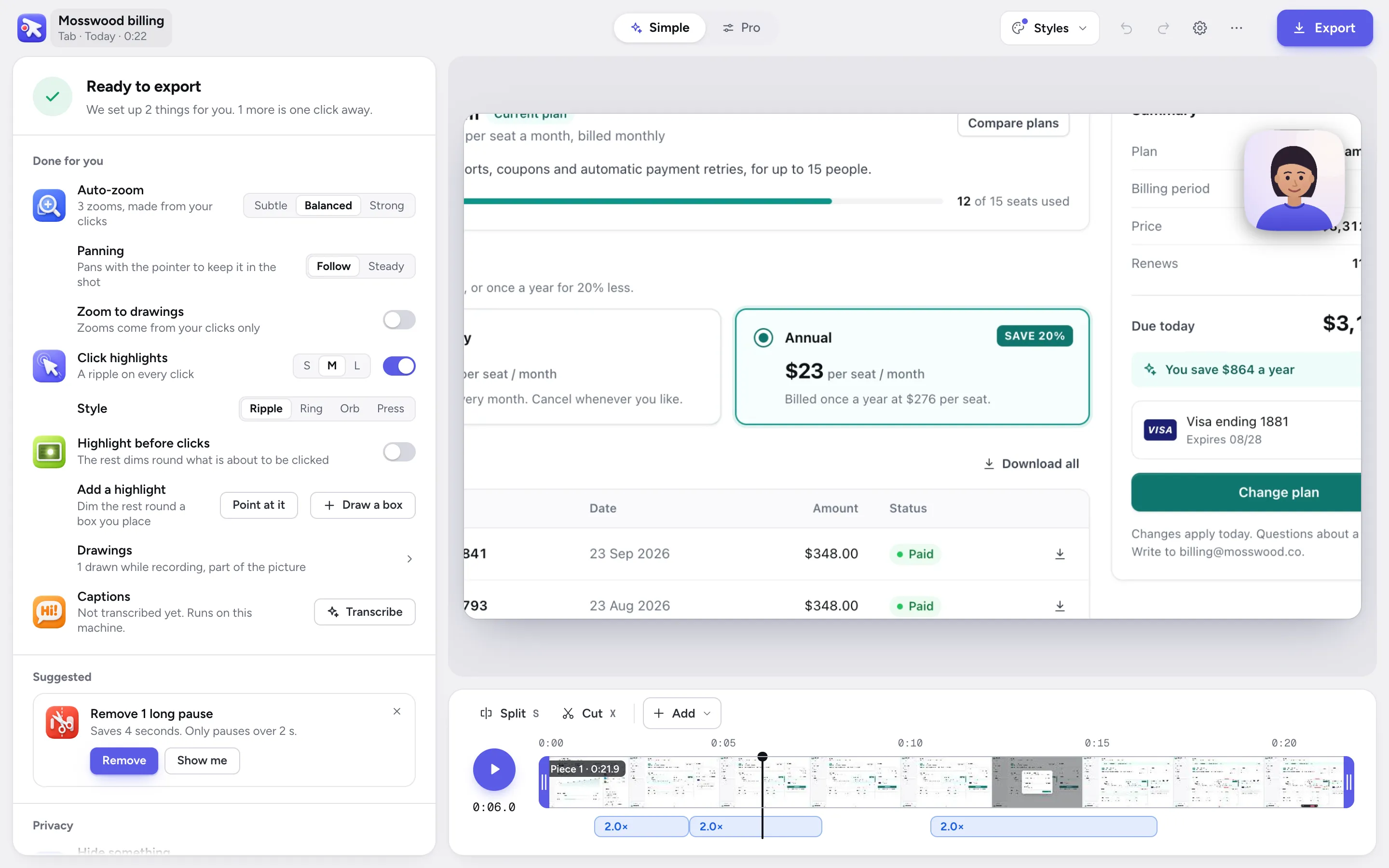
The video editor in Simple.
One recording, a video and a guide
Every click in a PointerCam recording also becomes a numbered step in a guide: a close-up of the screen with a box round what you pressed, and a line that already says what you clicked, like Click “Billing”. Export it as PDF, Word, a web page or Markdown, on the free plan.
Camtasia’s plans include Snagit, which lists step capture and guide creation among its features.
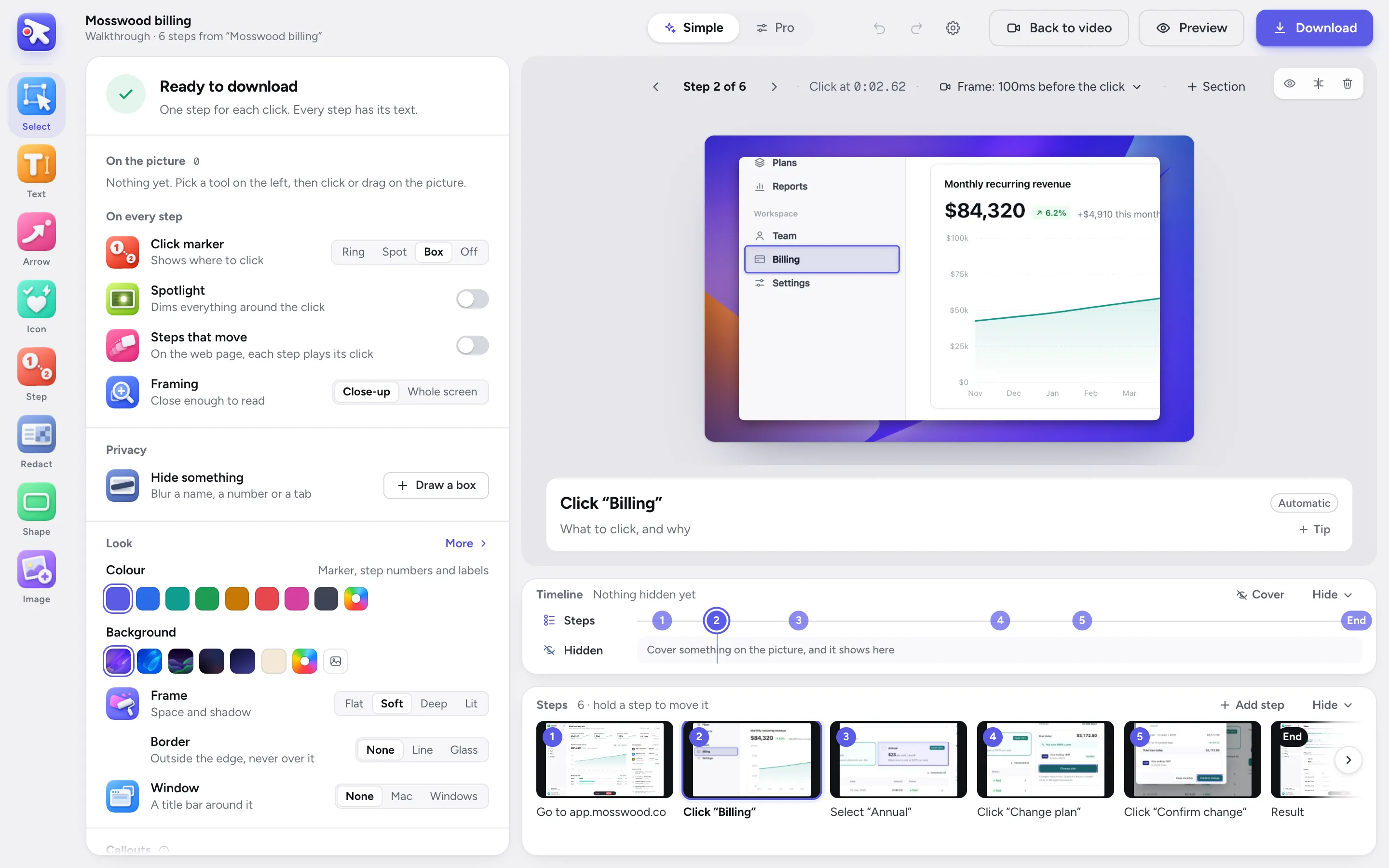
The guide editor, opened on the same recording as the video.
Pay by the month, or for a week
Camtasia’s plans are billed yearly, and Essentials, the first without a watermark, is $179 a year according to TechSmith. Its free editor has every editing feature and puts a watermark on exports.
PointerCam’s free plan exports with a small mark. Studio removes it for $10 a month yearly or $20 monthly, and a pass is $9 for 7 days, paid once.
Where Camtasia is the better pick
Camtasia does far more editing than PointerCam: a multitrack timeline, transitions, animations, green screen, editing by transcript, quizzes and SCORM for learning platforms, AI scripts, voiceovers, avatars and dubbing, and apps for Windows.
If you produce long training videos or courses, choose Camtasia. If you want a finished video from one recording, and the guide beside it, choose PointerCam.
Questions
 Questions
What people ask.
You can download the whole Camtasia editor and use it for free, according to TechSmith, and exports carry a watermark until you buy a plan. Essentials, the first plan without one, is $179 a year.
More comparisons
No more plain screen recordings.
Make your next demo, tutorial or client update with PointerCam. It is free to try, needs no account, and nothing leaves your computer.
Only about PointerCam, and every email has an unsubscribe link. Privacy
Free to try · No account · Nothing uploadedOpen the web editor