

Your microphone and camera
Turn your microphone and camera on in the popup or the Mac toolbar before you record. Your camera records as its own track, so its layout can change later.
Mac appChrome
Where to find it
- Chrome toolbar
- PointerCam
- Microphone
Steps for
- 1Open the recording toolbar with New Recording… in the menu bar.
- 2Click the microphone button and pick a microphone, or No microphone.
- 3Click the camera button and pick a camera. A preview shows where it will sit.
- 4Click System audio to record what the Mac plays as well.
macOS asks for permission the first time. If you said no, turn PointerCam on in System Settings › Privacy & Security under Microphone or Camera.
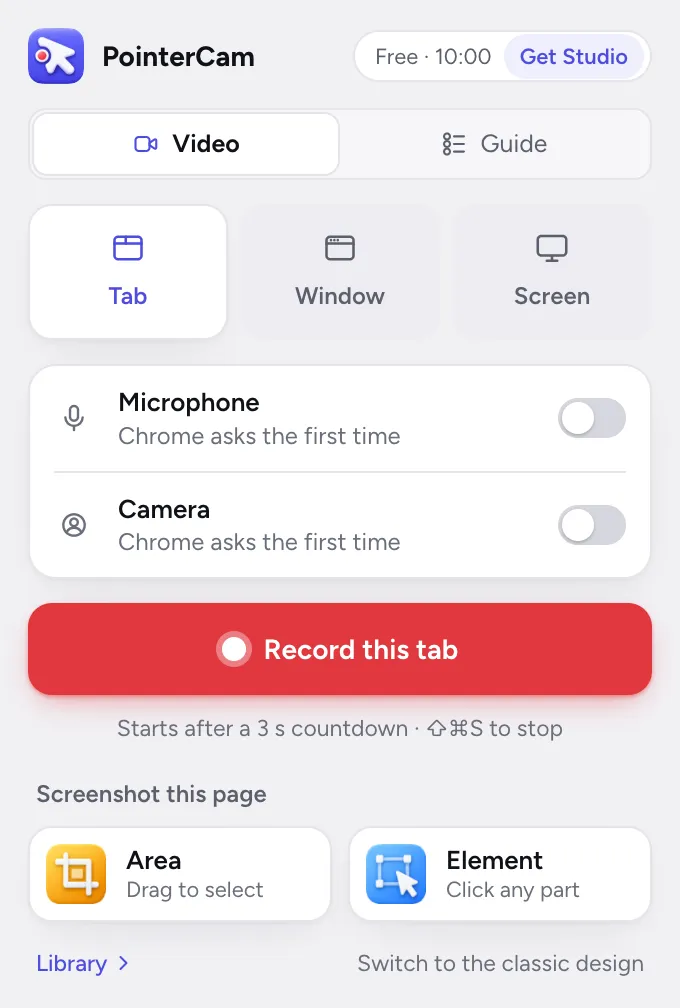
- 1Click PointerCam in Chrome’s toolbar.
- 2Switch on Microphone.The first time, Chrome asks for permission. The level under its name moves when it hears you.
- 3To pick another microphone, open the menu under its name.
- 4Switch on Camera the same way. Its live picture shows in the row.
If a row says Blocked in Chrome, switch it on and PointerCam opens a page that shows you how to allow it again.
After the take#
- Your voice and the tab or system audio each get their own volume in the editor. See Volume, ducking and the mix.
- The camera is recorded beside the screen, so you can change its layout, size and shape at any moment of the video. See Camera layouts.
- Captions can be written from your voice on your own computer. See Captions.
Read next
Camera layoutsChoose how your camera and the recording share the frame: a bubble in a corner, side by side, you alone, or the screen alone. There are 15 layouts.Volume, muting and the mixYour voice, the tab or system audio, music and sounds each have their own level under Audio & Captions › Sound, with one master level over the whole mix.CaptionsPointerCam writes captions from your voice on your own computer, timed word by word. Edit any line, style them, and light each word as it is spoken.The Mac app cannot record my screenmacOS needs Screen & System Audio Recording turned on for PointerCam Capture. Turn it on in System Settings, then reopen PointerCam if macOS asks.


Something not working the way this page says? See Troubleshooting, or start from Getting started.