

Record a window or your whole screen in Chrome
Pick Window or Screen in the popup. A recorder tab opens, Chrome asks what to share, and you get three seconds to switch to what you are showing.
Chrome only
Where to find it
- Chrome toolbar
- PointerCam
- Window or Screen
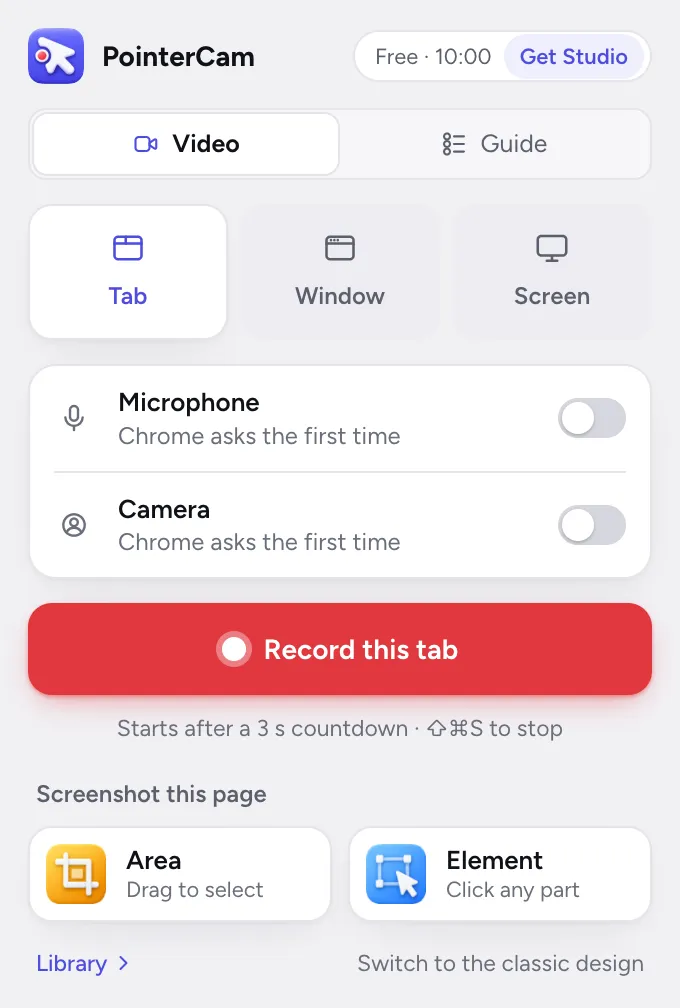
- 1Click PointerCam in Chrome’s toolbar.
- 2Choose the Window or Screen tile, then press Record a window or Record your screen.A PointerCam tab opens. This is the recorder.
- 3Choose Entire screen or One window, then pick it in Chrome’s question.What you shared shows in the recorder before anything is recorded. To share something else, choose Change.
- 4Press Record, then switch to what you are showing.You get 3 seconds. Press Esc during the count to call it off and keep what you shared.
- 5To finish, press ⇧⌘S, or click PointerCam in the toolbar and choose Stop and edit.The take opens in the editor.
Which clicks become close-ups#
In a window or screen take, PointerCam follows your clicks on web pages in Chrome. Clicks in other apps are in the picture but are not tracked, so they do not make close-ups or guide steps. The editor tells you when this happened, and you can add close-ups there by hand.
Read next
Record a browser tabClick PointerCam in Chrome’s toolbar, keep Tab selected and press Record this tab. Every click on the page is followed, and Stop opens the take in the editor.Which clicks PointerCam followsThe Mac app follows clicks in every app. The Chrome extension follows clicks on web pages, in tab, window and screen takes alike.Add a zoom by handMove the playhead to the moment, then press + on the timeline and choose Zoom. A close-up lands there for you to move, stretch and aim.Record your screen on a MacChoose New Recording from the PointerCam menu bar icon, pick a display or a window, and press Record. Your clicks are followed in every app.


Something not working the way this page says? See Troubleshooting, or start from Getting started.