

Take a screenshot
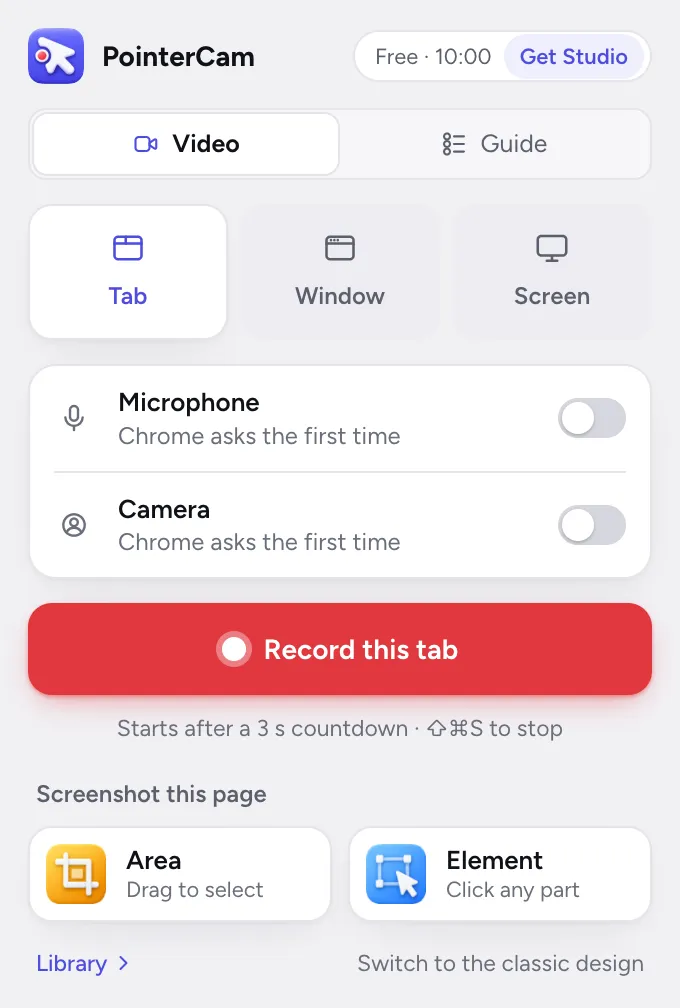
In Chrome, choose Area or Element in the popup. On a Mac, choose Take Screenshot from the menu bar. Then copy it, or press Edit to open it in the screenshot editor.
Mac appChrome
Where to find it
- Chrome toolbar
- PointerCam
- Area or Element
Steps for
- 1Click the PointerCam icon in the menu bar and choose Take Screenshot…It is also in the File menu.
- 2Drag over what you want, or press Space and click a window to take the whole window.
- 3A card appears with the screenshot.Press Copy, Edit, or the bin.
- ⌘C
- Copy the screenshot
- Return
- Edit in PointerCam
- Esc
- Discard
- 1On the page you want, click PointerCam in Chrome’s toolbar.
- 2Choose Area or Element.
- 3For an area, drag over what you want. For an element, point at anything on the page and click.With Element, press ↑ and ↓ to widen or narrow what is picked. Esc cancels either.
- 4A small bar appears under the screenshot.Press Copy to put it on your clipboard, Edit to open it in the screenshot editor, or the bin to throw it away.
- ⌘C
- Copy the screenshot
- Return
- Edit in PointerCam
- Esc
- Discard
Read next
Open a picture in the screenshot editorOpen any screenshot from the library’s Screenshots shelf, bring in a PNG or JPEG, or send a frame of a video to the screenshot editor.Add arrows, text, shapes and iconsPick a tool from the bar under the picture, then click or drag on it: text, an arrow, a rectangle, an ellipse or a star, a numbered step, an icon or an image.Save or copy a screenshotPress Save picture. Choose PNG, JPEG or WebP and a size of 1×, 2× or 3×, then save it to your Downloads, or copy it to paste anywhere.

Something not working the way this page says? See Troubleshooting, or start from Getting started.