

Record a browser tab
Click PointerCam in Chrome’s toolbar, keep Tab selected and press Record this tab. Every click on the page is followed, and Stop opens the take in the editor.
Chrome only
Where to find it
- Chrome toolbar
- PointerCam
- Tab
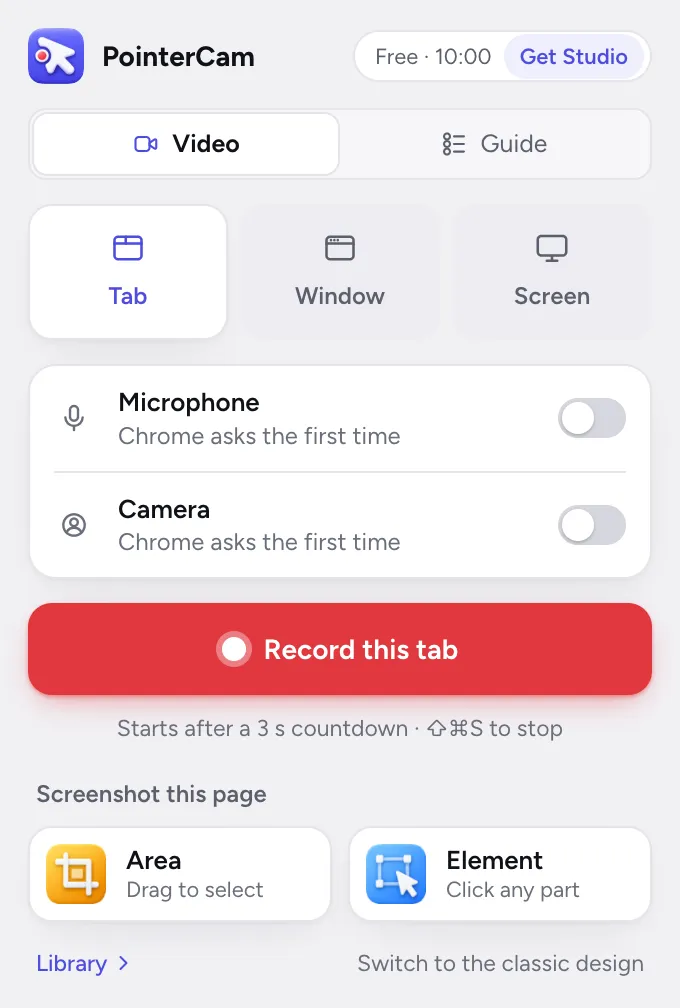
- 1Open the tab you want to record.Chrome does not let any extension record its own pages, such as Settings or a new tab page, so open a website first.
- 2Click PointerCam in Chrome’s toolbar.If you do not see it, click the puzzle piece and pin PointerCam.
- 3Under What to make, keep Video, and under the source tiles, keep Tab.
- 4Choose whether to record your microphone and your camera, with the switches in the popup.
- 5Press Record this tab.A 3 second countdown runs, then the take starts. A small bar appears at the bottom of the page.
- 6Work the way you normally would.Click, type and scroll. PointerCam follows every click on the page.
- 7Press Stop on the bar, or press ⇧⌘S.The take opens in the editor with a close-up on each click.
While you record#
The bar at the bottom of the page has everything you need during a take. A tab take records the whole page, so the bar is in the video too: it opens for a moment as the take starts, then rests as a small red dot until you point at it.
- The clock
- How long the take has run.
- Draw
- Draw on the page while you talk. See Draw on the screen.
- Pause
- Stops the take for a moment. Press it again to carry on. The paused time is left out of the video.
- Stop
- Ends the take and opens it in the editor.
- Discard
- Throws the take away. Nothing is saved.
The same controls are in the popup while you record: click PointerCam in the toolbar to see Stop and edit, Pause and Discard. Stopping from there, or with ⇧⌘S, ends the take without the bar opening in the video.
Read next
Record a window or your whole screen in ChromePick Window or Screen in the popup. A recorder tab opens, Chrome asks what to share, and you get three seconds to switch to what you are showing.Your microphone and cameraTurn your microphone and camera on in the popup or the Mac toolbar before you record. Your camera records as its own track, so its layout can change later.Pause, stop or discard a takeEvery take has a small bar with the clock, Draw, Pause, Stop and Discard, and keys that work from anywhere. The Mac app keeps its bar out of the video.Which clicks PointerCam followsThe Mac app follows clicks in every app. The Chrome extension follows clicks on web pages, in tab, window and screen takes alike.
Something not working the way this page says? See Troubleshooting, or start from Getting started.