

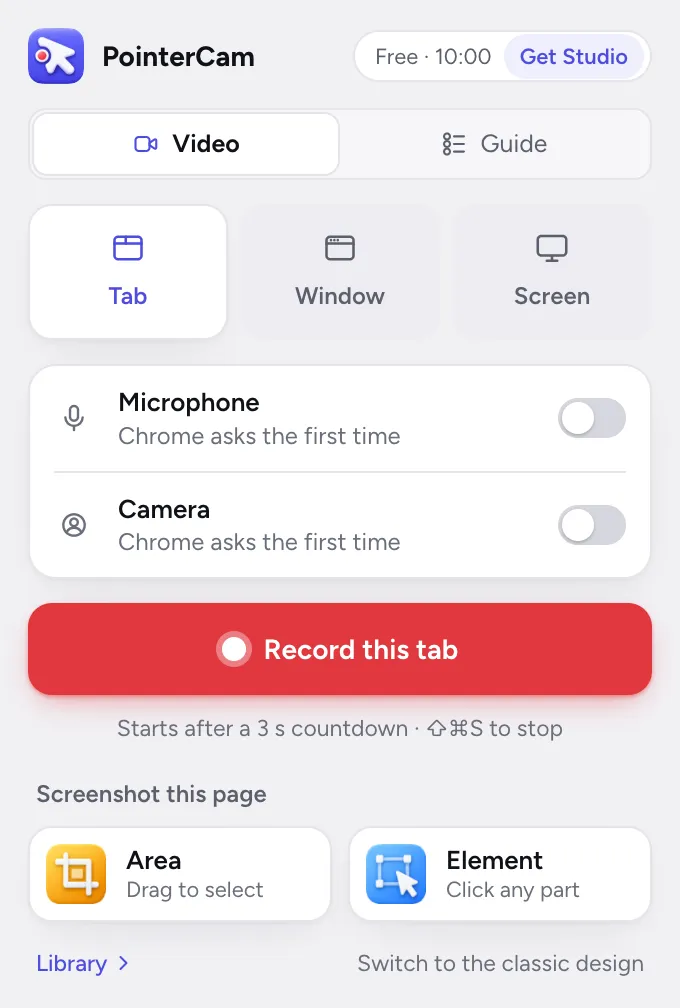
Record a guide instead of a video
Choose Guide before you record. Each click becomes a numbered step, the take is recorded without your voice or camera, and it opens in the guide editor.
Mac appChrome
Where to find it
- Chrome toolbar
- PointerCam
- Guide
Steps for
- 1Click the PointerCam icon in the menu bar and choose New Guide…, or press ⌘⇧N while PointerCam is in front.
- 2Pick Display or Window, then press Record guide.
- 3Click through the task in any app, at your own pace.
- 4Press Stop. The guide opens with a step for every click.
- 1Open the page where the task starts, and click PointerCam in Chrome’s toolbar.
- 2Under What to make, choose Guide.The popup says the take is recorded without your voice or camera.
- 3Choose Tab, Window or Screen, and press Record a guide.
- 4Click through the task.
- 5Press Stop. The guide opens with a step for every click, each already saying what you clicked.
What a guide take is#
- One step for each click, with a picture of the screen at that moment.
- A line for each step, written from what you clicked, like Click “Billing”, when PointerCam can read the name.
- A final step showing where you ended up.
- No voice or camera, and fewer frames, so it stays small.
You can still make a video from a guide take later: press Make a video at the top of the guide editor, or choose Make a video of it from the guide’s menu in the library.
Read next
Make a step-by-step guideAny take with clicks can become a guide: one numbered step per click, each with a picture and a line saying what was clicked. Start it from the library or the editor.Step headings and textEach step’s heading is written from what you clicked, marked Automatic. Type over it to make it yours, add text under it, and add a tip, a warning or a note.Name the clicks in Mac guidesIf a Mac guide’s steps say Step 1, Step 2 instead of what you clicked, allow Accessibility for PointerCam Capture, then record again.Download or copy a guidePress Download and choose PDF, Word, a web page or Markdown. Or press Copy to paste the guide, pictures and all, into a document, a wiki or an email.

Something not working the way this page says? See Troubleshooting, or start from Getting started.